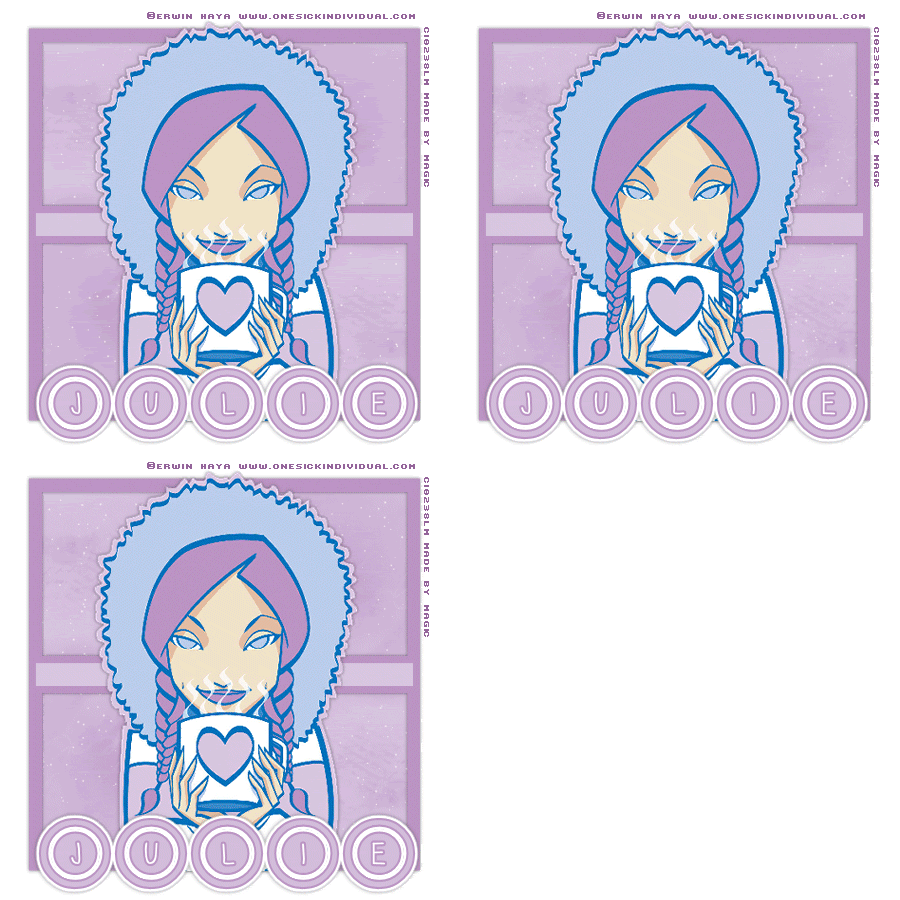
February Babe
Supplies Needed
Tube of choice
Font of choice [or mine here]
Preset Shape of choice.
Filters:
VDL Adrenaline – Snowflakes
Eye Candy – Gradient Glow [optional]
Artwork © Erwin Haya.
You need to purchase a licence to use Erwin’s artwork.
Visit CILM to get yours!
Lets begin!
1. Open up a new image. Floodfill with white. [mine was 450 x 450]
2. Choose 2 colours from your tube. Click on your preset shapes and choose a shape you would like to use.
My line width was 7, null background.
Objects – Align – Center in canvas. Convert to Raster Layer.
3. Using your magic wand click inside the white of the shape.
Selections – Modify – Expand by 3.
Layers – New Raster layer. Floodfill this with your lighter colour.
Layers – New Raster layer. Apply brushes of choice.
Keep selected.
4. Now, you want 3 new Raster layers. I renamed mine Snow 1, Snow 2, Snow 3.
We are going to apply the snow!
With Snow 1 the active layer Effects – VDL Adrenaline – Snowflakes with the following settings:

Repeat for Snow 2 except change the Random Seed to 10.
Repeat for Snow 3 except change the Random Seed to 15.
Deselect.
5. Make your shape layer the active layer by clicking on it.
Layers – Arrange – Bring to Top. Apply a drop shadow of choice.
I used V & H [0] Opacity [50] Blur [5] Colour [Black]
6. Copy and paste your tube as a new layer. Resize if needed.
Apply a drop shadow [I used same as shape layer].
7. Add your name with font of choice. I used Dialtone, size 72, Stroke width 2.
I then applied Gradient Glow and added the same drop shadow as earlier.
8. Add the artists copyright and your ready to animate!
9. With your top layer active, hide Snow2 and Snow3 layers

Click on Edit – Copy Merged.
Open Animation Shop and click on Edit – Paste – As New Animation.
Back to PSP.
Hide Snow1 and unhide Snow2.

Click on Edit – Copy Merged.
In Animation Shop, Right Click on your image already pasted earlier and Paste – After Current Frame.
Back to PSP.
Hide Snow2 and unhide Snow3.

Edit – Copy Merged.
In Animation Shop, Right Click on Frame 2 [the 2nd image pasted] and Paste – After Current Frame.
10. Still in Animation Shop, with one of your frames highlighted, press Ctrl and A on your keyboard.
This will highlight all your frames.
Click on Animation – Frame Properties. I changed my display time to 25.
11. All Done! Animation Shop will save this as a .gif file for you.
I tend to do all my animations on a white background as applying Gradient Glows and Drop Shadows can make your tag not turn out the way you like.
Thank you for trying out my tutorial.
Layout and Tutorial ©Julie [magic] written on November 6th 2006.
Registered with Tutorial Writers Inc.
 Artistic Passion Tutorials